
 How-to
How to Coordinate Calendars Across Platforms Without Chaos
Last Updated: November 17, 2026
Quick Summary
To coordinate calendars across platforms, connect your accounts with native sync or a dedicated tool, then agree which calendar is the master for each type of event. Most sync connections run in only one direction, so test a dummy event both ways before you rely on it.
- Native sync is often read-only in one direction, so edits made in one app may not flow back.
- Decide which app is the master for work events and which for personal events, and write the rule down.
- Test one recurring meeting with a moved instance, one shared calendar and one event with an attachment.
- Use native sharing for visibility, and a sync tool only when events genuinely need copying between accounts.
- Booking links suit routine calls but can read as a brush-off in senior relationships.
Table of Contents
- Why Calendar Coordination Is a Communication Problem, Not a Calendar Problem
- How to Sync Outlook and Google Calendars Natively
- Syncing Outlook Calendars From Different Accounts
- Choosing a Calendar Sync App: Trade-offs in Privacy, Permissions and Sync Delay
- Sharing Your Calendar With Another Person and Where Booking Links Fall Short
- Set Up One Coordinated Calendar This Week and Let MyA Handle the Rest
- Frequently Asked Questions
Why Calendar Coordination Is a Communication Problem, Not a Calendar Problem
Most people think coordinating calendars across platforms is a technical job. Connect the right accounts, flip the right switch, and the chaos goes away. In our experience, that is only half the story.
Teams that run across time zones feel this most.
Treat coordination as a communication problem and the fixes change. Practical guidance on protecting focus time shows how to stop overbooking from causing the clashes in the first place.
How to Sync Outlook and Google Calendars Natively
Native sync is the first thing to try. Microsoft and Google both let you connect an account to the other platform's calendar, but the two directions are not equal, and that asymmetry is where most of the pain lives.
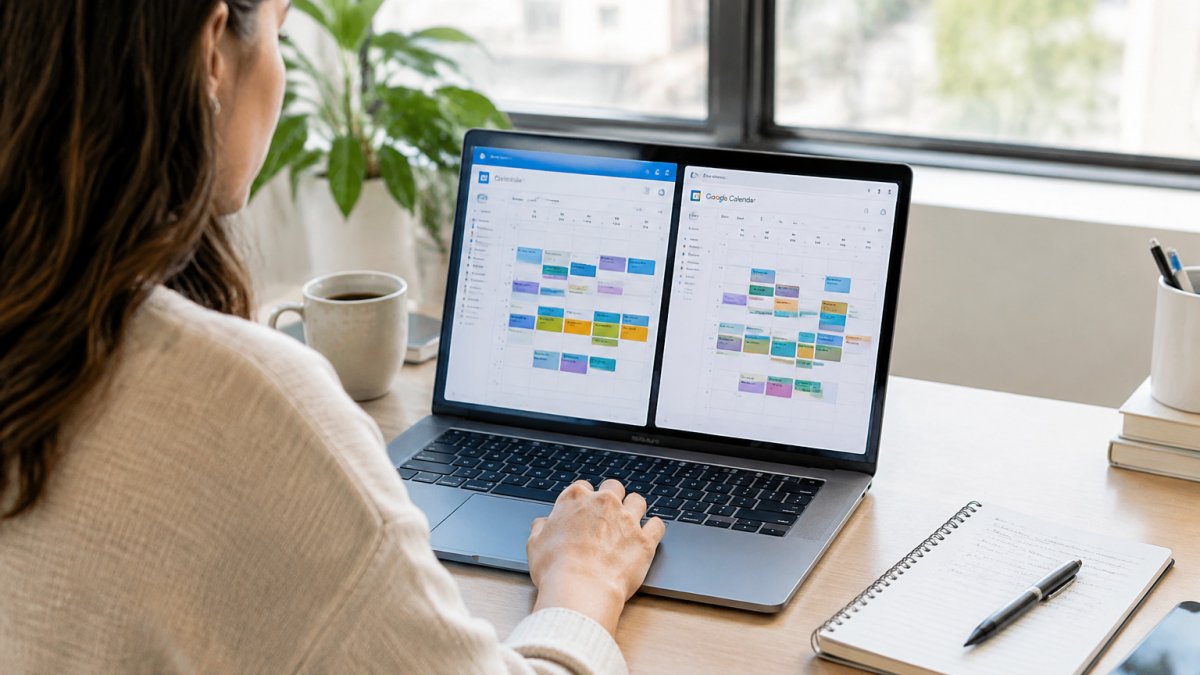
The core idea is simple. You add your Google account to Outlook, or your Outlook account to Google Calendar, so events from one appear in the other.
Connecting Google Calendar to Outlook step by step
- Sign in to Outlook on the web and open the calendar settings.
- Choose the option to add a calendar from another account, and select Google as the provider.
- Sign in to your Google account and grant the permissions Outlook asks for.
- Pick which Google calendars to show, and confirm.
- Open both calendars side by side and check that a test event appears in each direction.
Test with a dummy event before you rely on it. A common mistake is assuming the connection is live because the setup screen said so.
Watch out: if you only see the Google calendar as an overlay in Outlook and cannot edit it there, you have a read-only subscription, not a two-way sync. Edits made in Outlook will not flow back, and you will quietly build two versions of the same day.
One-way versus two-way sync and where conflicts start
Most native connections are read-only in one direction. You can see Google events inside Outlook, but edits made in Outlook may not flow back.
A useful way to think about it: a subscription copies events on a schedule, while a true sync reconciles changes in both directions. Subscription is safer and simpler.
When events do conflict, the behaviour depends on the tool, not on a universal rule.
If you move a meeting in one app and the change does not reach the other, you have two versions of the same day. Double bookings follow. Check which direction your connection actually runs before you trust it, and make one app the master for each calendar.
What does not survive the trip
Native sync is not a full copy. Recurring events with exceptions, shared team calendars, colour labels, attachments and some free/busy details often behave differently on the other side.
Native sync works best for one person managing their own accounts.
The two directions are not equal, and the differences are easy to miss. This table sets out what to check before you rely on a connection.
| Connection type | What it does | Watch out for |
|---|---|---|
| Read-only subscription | Shows Google events inside Outlook | Edits made in Outlook do not flow back |
| True two-way sync | Reconciles changes in both directions | Deletions may vanish or reappear on refresh |
| Same meeting via two routes | Forwarded invite plus synced calendar | Creates duplicate entries |
| Recurring events with exceptions | Copied across the connection | Often behave differently on the other side |
| Shared team calendars | Visible through the connection | Often do not survive the trip intact |
| Attachments and colour labels | Copied across the connection | Often lost or changed on the other side |
Syncing Outlook Calendars From Different Accounts
Many people run a work Outlook account and a personal one. Adding both to a single view is useful, but it multiplies the risk. Each account has its own permissions, its own time zone setting and sometimes its own rules about what details other people can see.
Keep these points in mind:
- Confirm which account owns each event before you move or delete it.
- Check that working hours and time zones match in both accounts, or recurring meetings will drift.
- Decide which account is the default for new invitations, so replies do not land in the wrong inbox.
Clear rules beat clever settings here. Write them down once and you will avoid most of the confusion.
Choosing a Calendar Sync App: Trade-offs in Privacy, Permissions and Sync Delay
Native sync is free but limited. Third-party calendar sync apps add features, such as aggregating many calendars or offering scheduling pages. They also ask for more access.
Those are three different jobs. Viewing is an overlay: you see several calendars in one place but nothing is copied. Copying is synchronization: events move between accounts and can be edited on either side. Handing off is delegation: someone else negotiates and books on your behalf.
Compare tools on six things:
- Permissions: Read-only access is safer than full read and write. Ask why a tool needs write access before you grant it.
- Privacy: Find out whether the app stores event details or only busy times, and where that data sits.
- Sync direction: Confirm whether it is one-way or two-way, and which side wins when an event is edited in both places.
- Sync delay: Changes may take minutes, not seconds. Test how long an edit takes to appear before you schedule anything important.
- Duplicate handling: Ask how the tool treats the same meeting arriving through two routes, and whether it can merge or suppress duplicates.
- Platform coverage: Confirm it supports every calendar you actually use, not just the big two.
Troubleshooting sync delays and failures
Most sync problems fall into a short list, and you can work through them in order.
- Authentication errors: The connection has expired or the password changed. Reconnect the account and re-grant permissions.
- Stale events: The sync is running but slowly. Check the tool's refresh interval and force a manual refresh if it offers one.
- Duplicate entries: The same event is arriving through two routes. Remove one connection or use the tool's duplicate suppression.
- Time-zone mismatches: The event is correct but displayed in the wrong zone. Check the time-zone setting on each account, not just the app.
- Revoked permissions: Someone removed access at the account level. Re-grant it and test with a dummy event.
Watch out: a sync that silently stops is worse than one that fails loudly. Set a recurring reminder to check that a test event still crosses in both directions, especially after a password change or a platform update.
A quick compatibility view
Before committing, check the features you actually depend on. Recurring events with exceptions, shared team calendars, colour labels, attachments and mobile support are the usual casualties. If your week runs on recurring meetings with moved instances, test that first.
My own position: use native sharing for visibility, a sync tool only when you genuinely need events copied between accounts, and keep the number of tools small.
Sharing Your Calendar With Another Person and Where Booking Links Fall Short
Sharing a calendar with an assistant or colleague is the usual next step. It works for seeing availability. It does not handle the negotiation that follows.
Booking links are the other common answer. They are fine for a sales demo or a routine call. They are poor for senior relationships.
Booking links also leave the hard part untouched. The calendar may show a free slot.
Set Up One Coordinated Calendar This Week and Let MyA Handle the Rest
Start small. Connect your main accounts, test a few events in each direction, and write down the rules for your default calendar and working hours.
When the coordination itself is the bottleneck, that is where MyA fits. You cc MyA on the email thread, and it works like an executive assistant.
There are no links to send and no app for your guests to install. If you want to see how it works, try it at mya.email.
Frequently Asked Questions
How do I sync Outlook and Google calendars?
Most people start with the native route. Check which direction you need before you rely on it, because native connections are often one-way or read-only. Changes made in one calendar may take a while to appear in the other, so keep both in view when you are scheduling anything time-sensitive.
Can I sync Google Calendar with another person?
You can share a Google Calendar with another person by opening its settings and adding their email address under sharing, then choosing their permission level. They will see your events, and you can see theirs if they share back. Sharing gives visibility but does not merge calendars, so you still need to coordinate meetings yourself. For group meetings across time zones, email-based scheduling that negotiates with everyone on the thread can take the back-and-forth off your hands.
Why are my calendars not syncing across devices?
The most common causes are a revoked account authorisation, a calendar set to one-way sync when you assumed two-way, or a sync delay that has not finished. Check that each account is still connected on every device, confirm which calendars are switched on for display, and wait a few minutes before assuming an event is missing. If a recurring event has broken, delete the duplicate and recreate it from the original calendar.
Is a calendar sync app better than native sharing?
Native sharing is free and keeps data inside the providers you already trust, but it offers less control over what gets copied and how conflicts are handled. A calendar sync app can offer a unified view and two-way updates across more platforms, though it needs access permissions you should review carefully. Pick the lightest option that stops double bookings for your situation, and check the app's privacy terms before connecting work accounts.